HOW IT WORKS
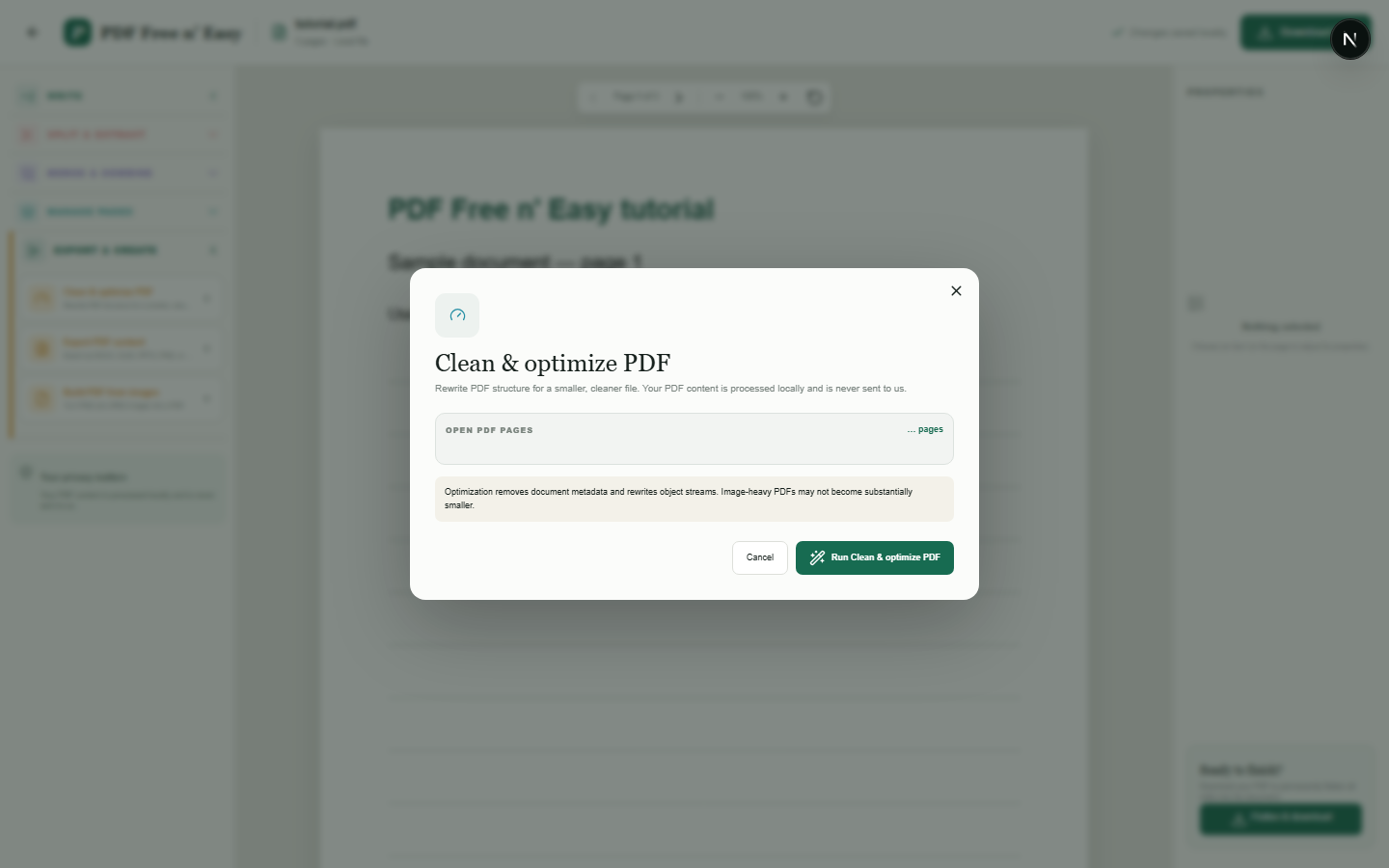
Clean and optimize a PDF locally
This is structural optimization, not aggressive image recompression. Results vary, and image-heavy PDFs may see only a small size reduction.
Finish the job on your device
- 1
Open the PDF to optimize.
- 2
Choose Clean and optimize from Export and create.
- 3
Process and download the rewritten PDF.
WHAT TO KNOW
Clear expectations before you begin
- The tool does not promise a specific compression percentage.
- It does not currently downsample every embedded image.
- Your PDF content is processed locally in your browser and is never sent to us.
PRIVACY BY DESIGN
Your document stays yours
The editor reads and processes the PDF using code running in your browser. PDF content is not submitted to an application server for processing or storage.
LOCAL PROCESSING FOR THIS TASK
Process the PDF with your own device
Cleanup and output run in browser memory rather than on a document-processing server. Results depend on the source PDF.
- 1SelectChoose a PDF directly from your device.
- 2ProcessThe supported operation runs in this browser tab.
- 3DownloadSave the newly generated result where you choose.
Clean and optimize a PDF locally FAQ
Why is my optimized PDF almost the same size?
Most of the file may consist of already-compressed images or fonts that cannot be reduced safely by structural cleanup.
Will optimization reduce visual quality?
The current cleanup prioritizes preserving page fidelity rather than aggressively recompressing images.