HOW IT WORKS
Annotate a PDF privately
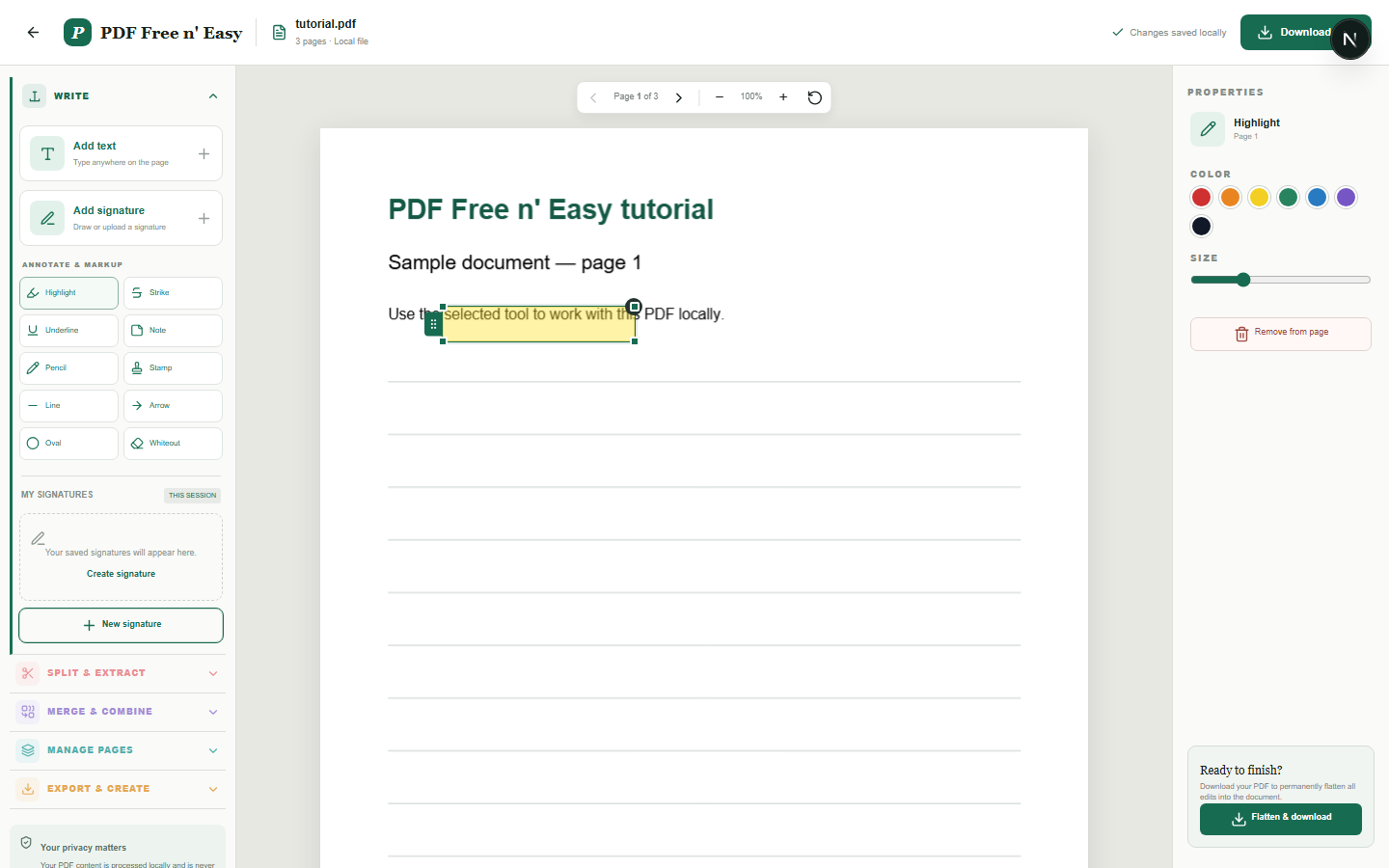
Annotations are adjustable overlays while editing and are permanently drawn into the downloaded PDF when flattened.
Finish the job on your device
- 1
Open the PDF to review.
- 2
Choose an annotation and place or draw it on the page.
- 3
Adjust its color or size and flatten the result.
WHAT TO KNOW
Clear expectations before you begin
- Annotation editing borders disappear when the element is not selected.
- Your PDF content is processed locally in your browser and is never sent to us.
PRIVACY BY DESIGN
Your document stays yours
The editor reads and processes the PDF using code running in your browser. PDF content is not submitted to an application server for processing or storage.
LOCAL PROCESSING FOR THIS TASK
Review and mark up the local document
Highlights, notes, shapes and drawings stay with the PDF in this tab until you create the flattened download.
- 1SelectChoose a PDF directly from your device.
- 2ProcessThe supported operation runs in this browser tab.
- 3DownloadSave the newly generated result where you choose.
Annotate a PDF privately FAQ
Can I undo an annotation?
Yes. Use Ctrl+Z or Command+Z. Redo is available with Ctrl+R, Ctrl+Y or the corresponding Command shortcut.
Can I delete a selected annotation?
Yes. Press Delete or Backspace when you are not typing in a text field.