HOW IT WORKS
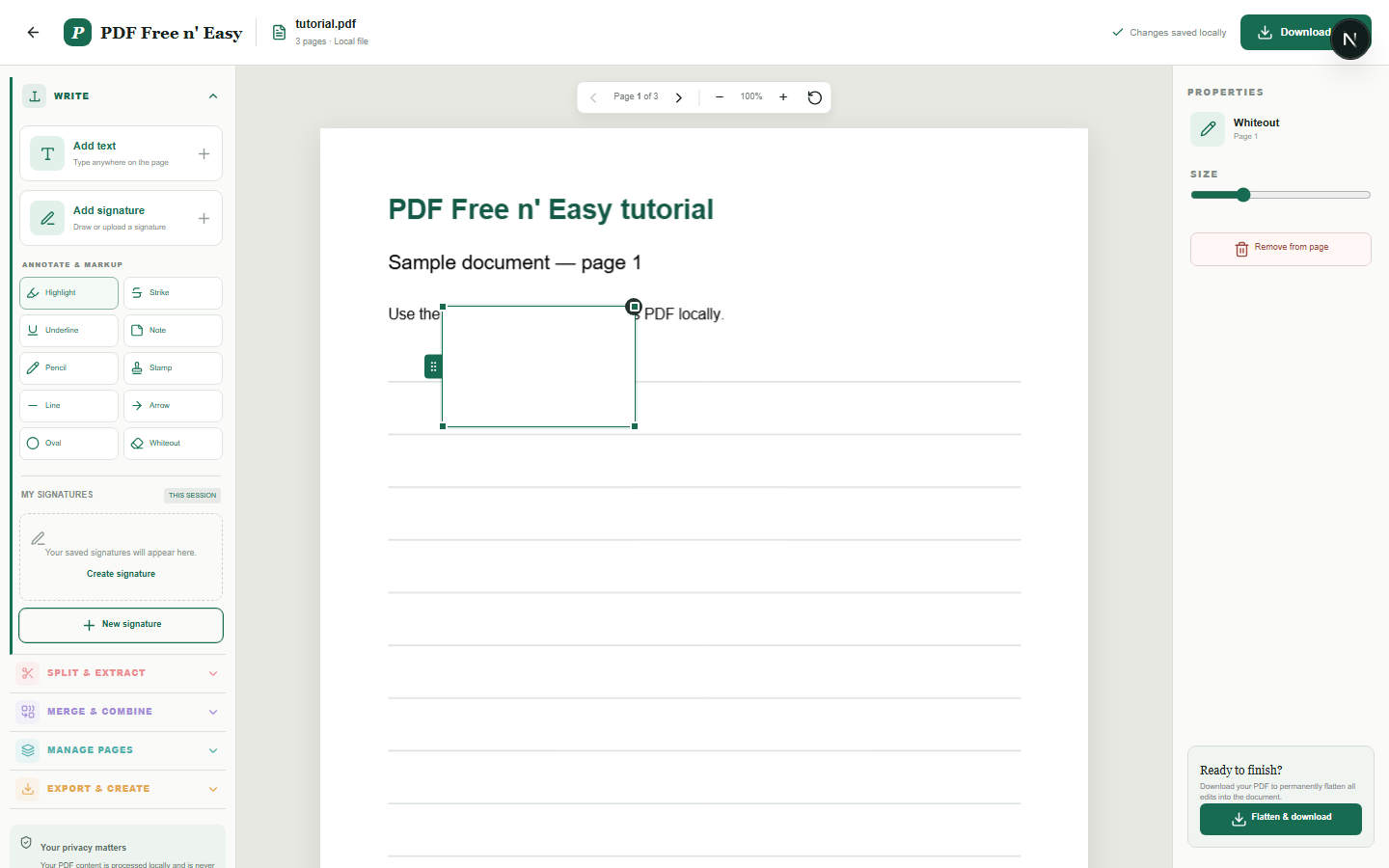
Cover content in a PDF with whiteout
Whiteout visually covers content. It is not secure redaction: underlying text or metadata may remain recoverable in the file.
Finish the job on your device
- 1
Open the PDF.
- 2
Place and resize the whiteout box over the visible content.
- 3
Flatten and download the visually covered PDF.
WHAT TO KNOW
Clear expectations before you begin
- Do not use whiteout for confidential redaction.
- Secure redaction requires removing underlying content, which this tool does not currently do.
- Your PDF content is processed locally in your browser and is never sent to us.
PRIVACY BY DESIGN
Your document stays yours
The editor reads and processes the PDF using code running in your browser. PDF content is not submitted to an application server for processing or storage.
LOCAL PROCESSING FOR THIS TASK
Cover visible content in your browser
White rectangles are placed and flattened locally. This is visual covering, not secure redaction; underlying data may remain.
- 1SelectChoose a PDF directly from your device.
- 2ProcessThe supported operation runs in this browser tab.
- 3DownloadSave the newly generated result where you choose.
Cover content in a PDF with whiteout FAQ
Does whiteout permanently remove confidential text?
No. It visually covers the page area but may leave underlying PDF text or metadata intact.
Will the exported white box match the preview?
The exporter maps the whiteout rectangle to the visible PDF crop and rotation, and the fidelity is covered by browser tests.