Export PDF content to an Excel workbook
This is a text-oriented export. It does not reconstruct the source PDF's tables, formulas, merged cells or exact spreadsheet formatting.
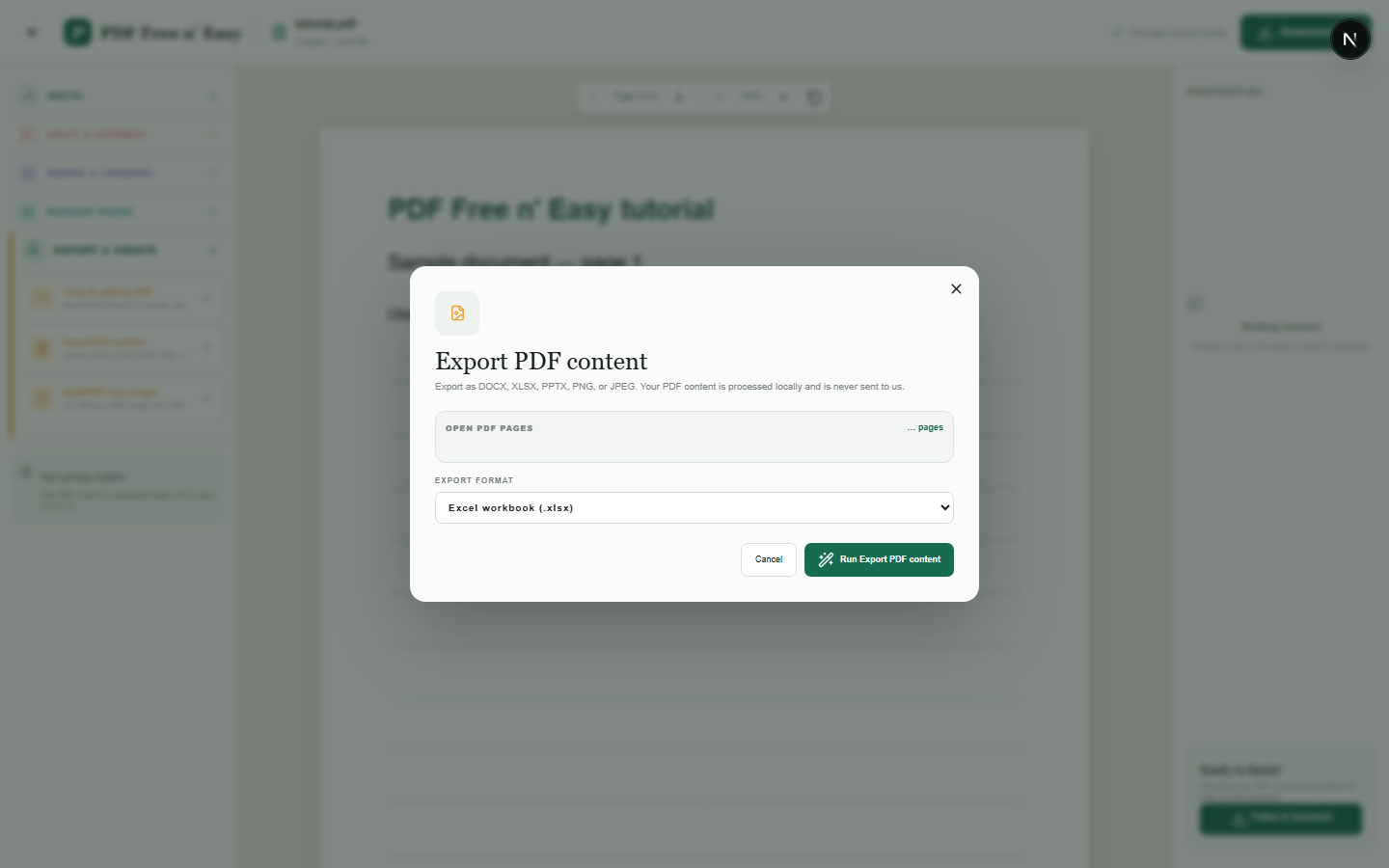
Finish the job on your device
- 1
Open a PDF containing selectable text.
- 2
Choose XLSX under Export and create.
- 3
Download the workbook and review the extracted page text.
Clear expectations before you begin
- Scanned pages without selectable text may produce little or no worksheet text.
- Complex table reconstruction is not currently supported.
- Your PDF content is processed locally in your browser and is never sent to us.
Your document stays yours
The editor reads and processes the PDF using code running in your browser. PDF content is not submitted to an application server for processing or storage.
Prepare an Excel-compatible file locally
PDF pages are processed by browser code according to the limitations on this page. The source is not uploaded for conversion.
- 1SelectChoose a PDF directly from your device.
- 2ProcessThe supported operation runs in this browser tab.
- 3DownloadSave the newly generated result where you choose.
Export PDF content to an Excel workbook FAQ
Will PDF tables become Excel tables?
Not reliably. Extracted text is written into worksheet rows, but visual table structure and formulas are not reconstructed.
Does it perform OCR?
No. Image-only scanned pages require OCR, which this export does not currently perform.