Sign a PDF without uploading it
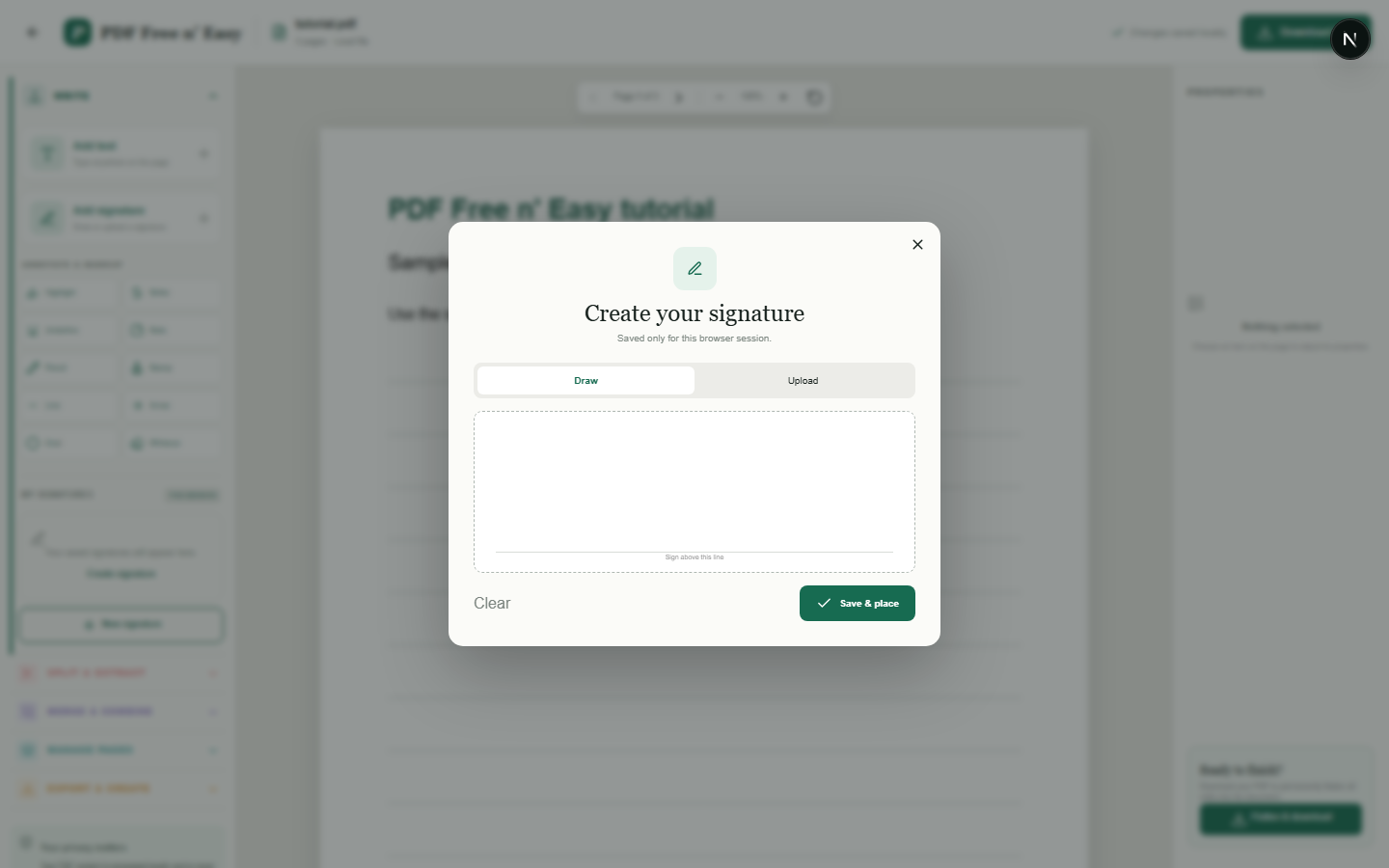
Signatures are kept in browser session storage so they can be reused on multiple pages during the same tab session. This is a visual signature tool, not a certificate-based digital-signature service.
Finish the job on your device
- 1
Open the PDF you need to sign.
- 2
Draw a signature or choose a PNG or JPEG signature image.
- 3
Position it, resize it and download the flattened PDF.
Clear expectations before you begin
- Closing the browser tab ends the saved-signature session.
- Your PDF content is processed locally in your browser and is never sent to us.
Your document stays yours
The editor reads and processes the PDF using code running in your browser. PDF content is not submitted to an application server for processing or storage.
Place a visual signature on your device
The PDF and signature image are combined by code running in this tab. HandyGrid does not send either file to an application server for signing or storage.
- 1SelectChoose a PDF directly from your device.
- 2ProcessThe supported operation runs in this browser tab.
- 3DownloadSave the newly generated result where you choose.
Sign a PDF without uploading it FAQ
Is this a cryptographic digital signature?
No. It places a visual signature image onto the PDF. It does not create a certificate-backed digital signature or independently verify identity.
Where is my signature stored?
It is stored only in session storage for the current browser tab so you can reuse it during that session.