HOW IT WORKS
Convertir páginas PDF a imágenes JPG localmente
Cada página PDF seleccionada se convierte en una imagen rasterizada. El formato JPG es útil para compartir, pero no conserva el texto seleccionable ni los gráficos vectoriales.
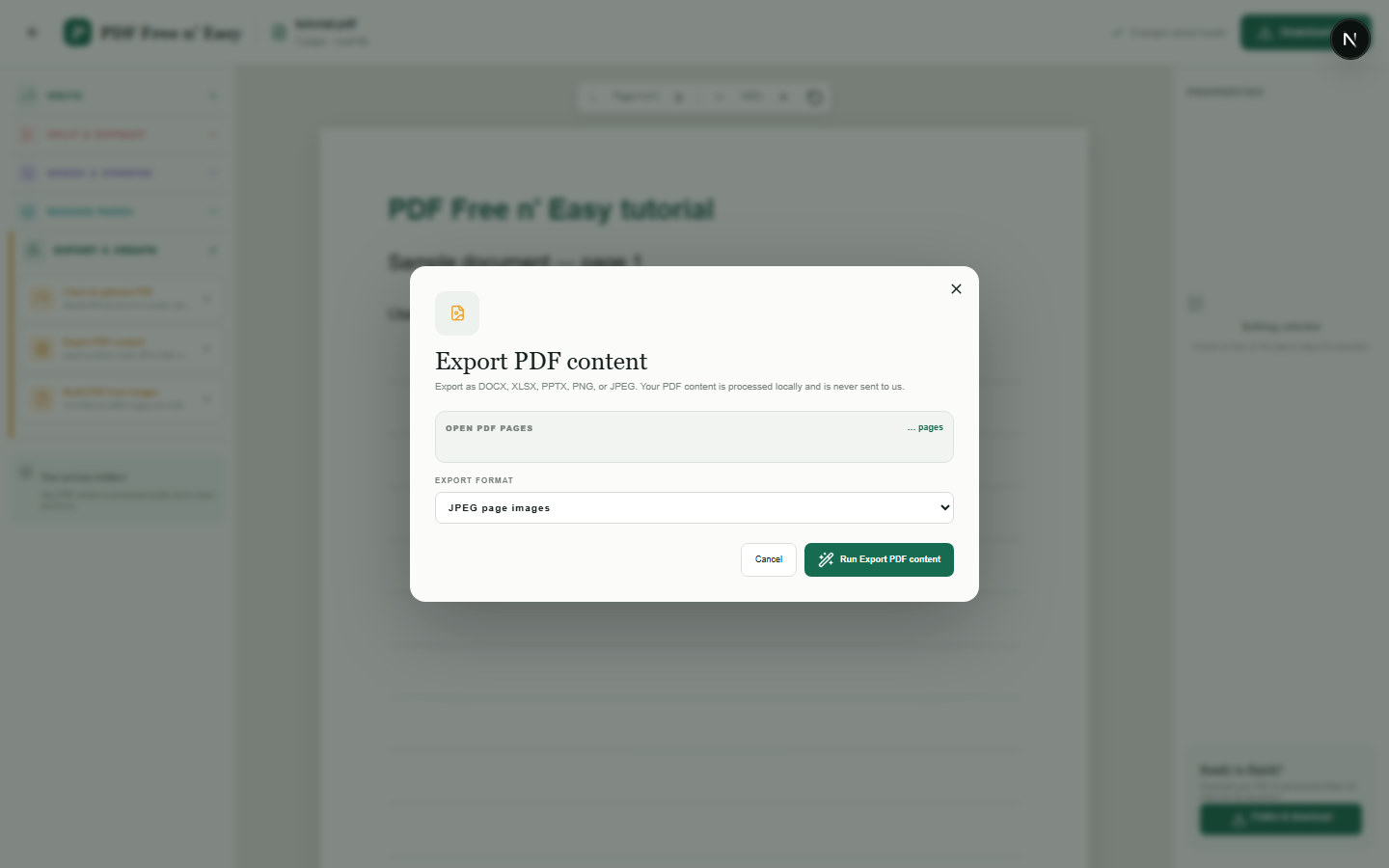
Finish the job on your device
- 1
Abrir el PDF.
- 2
Seleccione la opción de exportación de imagen en Exportar y crear.
- 3
Descarga las imágenes de las páginas renderizadas.
WHAT TO KNOW
Clear expectations before you begin
- La imagen de salida está rasterizada y ya no contiene texto PDF seleccionable.
- El contenido de su PDF se procesa localmente en su navegador y nunca se nos envía.
PRIVACY BY DESIGN
Your document stays yours
The editor reads and processes the PDF using code running in your browser. PDF content is not submitted to an application server for processing or storage.
LOCAL PROCESSING FOR THIS TASK
Render PDF pages without an upload
Each selected page is drawn to an image by your browser and made available as a JPG download.
- 1SelectChoose a PDF directly from your device.
- 2ProcessThe supported operation runs in this browser tab.
- 3DownloadSave the newly generated result where you choose.
Convertir páginas PDF a imágenes JPG localmente FAQ
¿Se conservará el texto seleccionable en JPG?
No. La página completa se convierte en píxeles de una imagen.
¿Debo usar JPG para documentos con texto pequeño?
PNG puede conservar mejor los bordes nítidos del texto, mientras que JPG generalmente produce imágenes fotográficas más pequeñas.