HOW IT WORKS
私密地对 PDF 进行注释
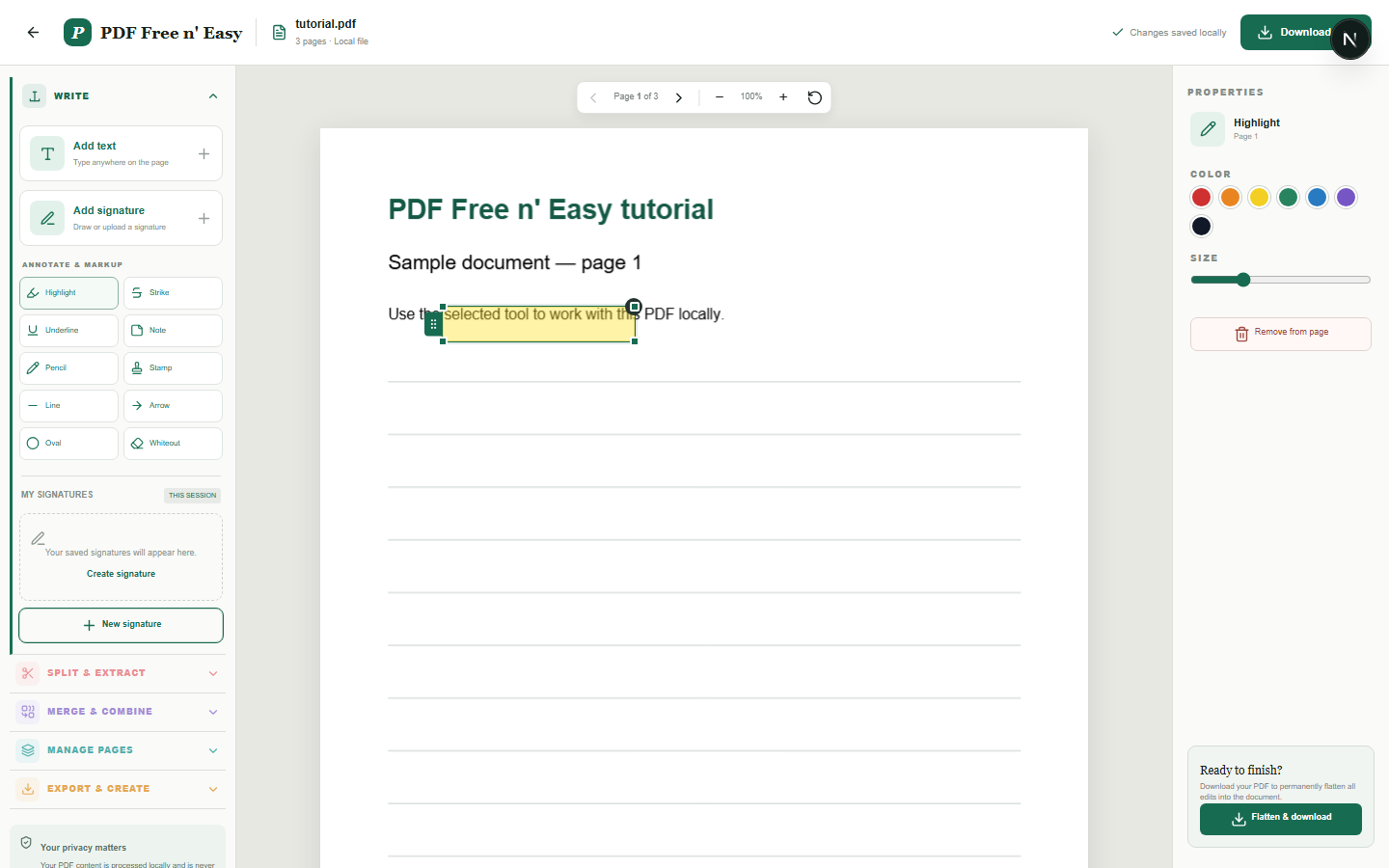
注释在编辑时是可调整的叠加层,并在展平后永久绘制到下载的 PDF 中。
Finish the job on your device
- 1
打开要审阅的 PDF 文件。
- 2
选择一个注释并将其放置在页面上或绘制在页面上。
- 3
调整其颜色或大小并展平结果。
WHAT TO KNOW
Clear expectations before you begin
- 当元素未被选中时,注释编辑边框将消失。
- 您的 PDF 内容在您的浏览器中本地处理,绝不会发送给我们。
PRIVACY BY DESIGN
Your document stays yours
The editor reads and processes the PDF using code running in your browser. PDF content is not submitted to an application server for processing or storage.
LOCAL PROCESSING FOR THIS TASK
Review and mark up the local document
Highlights, notes, shapes and drawings stay with the PDF in this tab until you create the flattened download.
- 1SelectChoose a PDF directly from your device.
- 2ProcessThe supported operation runs in this browser tab.
- 3DownloadSave the newly generated result where you choose.
私密地对 PDF 进行注释 FAQ
我可以撤销注释吗?
是的。使用 Ctrl+Z 或 Command+Z。重做功能可通过 Ctrl+R、Ctrl+Y 或相应的 Command 快捷键使用。
我可以删除选定的注释吗?
是的。当您不在文本字段中输入内容时,可以按 Delete 或 Backspace 键。